
Match Desktop, Benchtop, or Mid-Range Industrial Printers to Your Labels
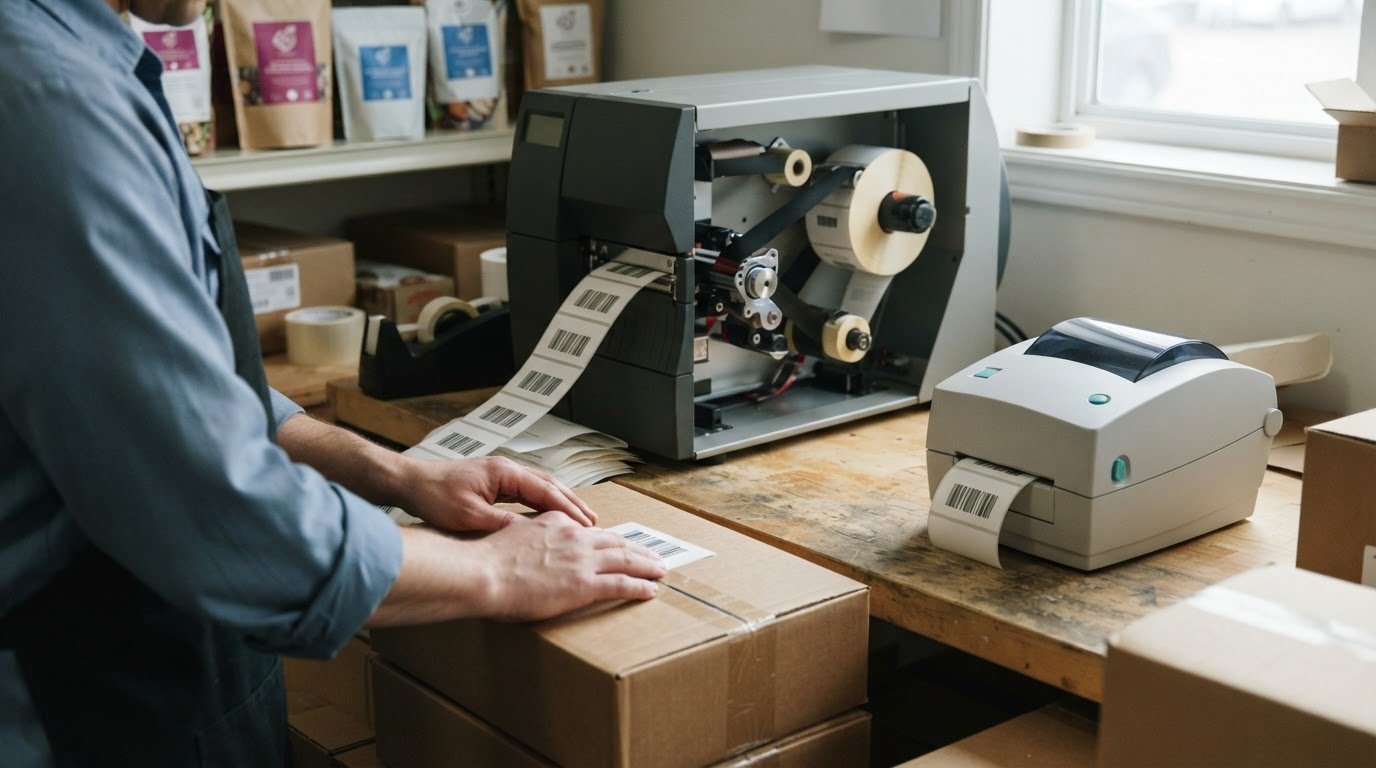
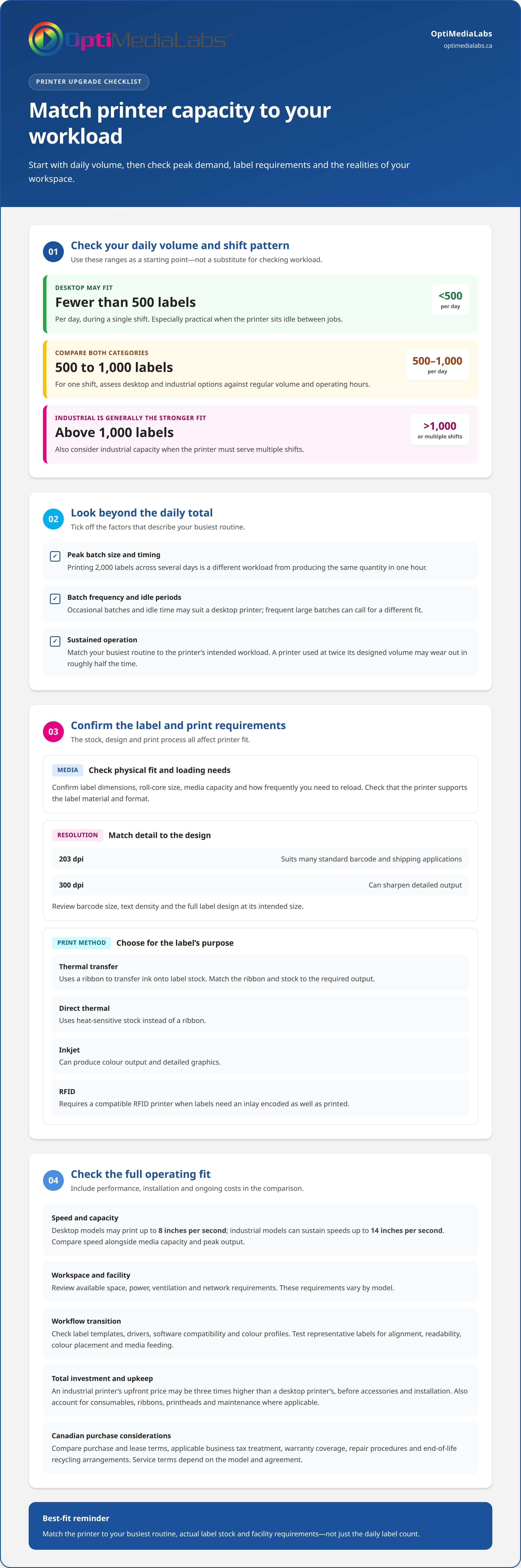
The next printer you need may not be a full industrial model. Upgrading from desktop to mid-range industrial printers is worth considering when your workload, label stock, or print schedule outgrows a desktop unit. Below 500 labels per day in a single shift may suit a desktop printer; at 500 to 1,000, compare both categories; above 1,000 or across multiple shifts, industrial is generally the better fit.
Daily label counts are only part of the decision. Printing the same quantity over several days is different from producing it in one hour. Label dimensions, barcode detail, roll capacity, and operating schedule all affect which printer fits.
This guide compares desktop, benchtop, and mid-range industrial printers by workload, media capacity, speed, and resolution. Learn what to assess before upgrading, when a mid-range model may bridge the gap, and when a desktop or full industrial printer is the more practical fit.
Key Takeaways
- Match the printer to your label stock and workflow, including roll-core size and how frequently you need to reload media.
- Choose print resolution based on barcode size, text density, and label design; 203 dpi suits many standard barcode and shipping applications, while 300 dpi can sharpen detailed output.
- Compare speed alongside capacity: desktop models may print up to 8 inches per second, while industrial models can sustain speeds up to 14 inches per second.
- Consider the full investment, not just the printer: an industrial model’s upfront price may be three times higher than a desktop printer’s, before accessories and installation.
- For colour labels, RFID applications, or finishing needs, explore the relevant printer or finishing options available from OptiMediaLabs Canada.
Desktop vs industrial label printers: which one does your business need?
Use daily volume as a starting point, then factor in shift length and peak demand. Compare your label count with how quickly you need the labels produced.
For fewer than 500 labels per day in a single shift, a desktop printer may fit. At 500 to 1,000, evaluate desktop and industrial options; above 1,000 or across multiple shifts, an industrial printer is generally a better fit.
Desktop printers
A desktop printer is a practical starting point for lower-volume work, especially when it sits idle between print jobs. Fewer than 500 labels per day during one shift may suit this category. But daily totals can hide peak demand: producing 2,000 labels over several days creates a different workload from printing the same quantity in one hour.
Include your busiest production period. If a shift handles occasional batches, a desktop printer may meet demand. Frequent large batches can call for a different fit.
Mid-range industrial printers
A mid-range industrial printer can bridge the gap when desktop capacity no longer matches regular volume or operating hours. At 500 to 1,000 labels per day in one shift, compare both categories; above 1,000 labels per day or for multi-shift use, industrial capacity is the stronger fit. A printer used at twice its designed volume may wear out in roughly half the time.
Budget for consumables and wear parts, such as ink or toner where applicable, ribbons, printheads, and maintenance. Requirements depend on the printer and print method. Before installation, review the selected model’s power, space, ventilation, and network requirements, which vary by model.
| Printer option | Daily volume and schedule | Demand to consider |
|---|---|---|
| Desktop | Fewer than 500 labels, one shift | Idle periods and occasional batches |
| Benchtop | Compare against actual volume and duty cycle | Available workspace and batch frequency |
| Mid-range industrial | Compare at 500 to 1,000; consider above 1,000 or multiple shifts | Peak output and sustained operation |
| Premium industrial | Continuous 24/7 production-line operation | Uninterrupted production demands |
Match your busiest routine to the printer’s intended workload, then confirm that its media and facility requirements suit your operation.
Plan the workflow change before replacing a desktop unit. Check label templates, drivers, software compatibility, and colour profiles, then test representative labels for layout or colour differences. Account for possible media incompatibility, workflow interruptions, and accessory or setup costs. To assess return on investment, compare equipment and operating costs with time saved, fewer interruptions, and output that meets demand.
For purchases in Canada, compare purchase and lease terms, applicable business tax treatment, warranty coverage, repair procedures, and end-of-life recycling arrangements. Warranty and service terms depend on the model and agreement, so include them in your total-cost comparison.
Choosing a printer by label type and use case
Start with the label material, print method, and finished appearance. A shipping label with a barcode has different requirements from a colour product label or an RFID label. Before comparing printer types, identify what the label must communicate and where it will be applied.
Thermal transfer printing uses a ribbon to transfer ink onto label stock. Choose a ribbon and label combination suited to the output and application. Direct thermal printing uses heat-sensitive stock instead of a ribbon. For either method, confirm that the printer supports the label material and format your workflow requires.
Inkjet printing can produce colour output and detailed graphics. A product label with a coloured logo, product name, and compact text calls for a different assessment from a warehouse label dominated by a barcode. Review the full design at its intended size, including small text and barcode elements, to judge whether the print is clear enough.
RFID labels have an inlay that must be encoded as well as printed. If your workflow requires encoded labels, choose a compatible RFID printer rather than assuming a standard barcode printer can handle the task. If the label needs only visible text or a barcode, assess those requirements separately.
When upgrading from desktop to mid-range industrial printers, match the equipment to the label construction and print process, not just the label’s appearance. Changing print methods may also require compatible stock or ribbons. Review the labels already used in production and identify which must remain unchanged.
- Shipping: Confirm the barcode and address print clearly on the selected stock.
- Product identification: Assess colour elements, compact text, and the label’s finished appearance.
- Thermal transfer: Match compatible ribbons and label stock to the required print output.
- RFID: Choose this route when labels need encoded inlays, not just printed information.
Before replacing a desktop printer, test a representative label with the proposed setup. Check alignment, readability, colour placement, and media feeding. This can reveal format or compatibility issues before the new workflow is used for routine production.
Base the decision to upgrade from desktop to mid-range industrial printers on the requirements of your actual labels. List each label type, print method, stock, and essential design element, then use that information to compare suitable equipment and consumables.
For help discussing a label application, discuss your label application.
Desktop and industrial printer model comparisons
Compare printer categories by media capacity, speed, resolution, and total purchase scope. These specifications affect label output and how well a model fits your existing workflow.
Available brands and models
In Canada, compare desktop, benchtop, and industrial models by their specifications, not just their category names. Models vary by print method and intended workload, so confirm that the unit supports your label stock and production pattern.
Start with media capacity. Desktop printers commonly use 4-inch cores, while industrial models can take 8- and 10-inch cores. Larger rolls can mean fewer media changes during production. Also compare rated speed: desktop printers can reach up to 8 inches per second, while industrial printers can sustain speeds up to 14 inches per second.
Resolution is another model-level distinction. A 203 dpi printhead suits many standard barcode and shipping applications. A 300 dpi printhead can provide better definition for detailed output, but resolution is available in more than one printer category. Match it to barcode size, text density, and label design before selecting a model.
Printer costs and included extras
An industrial printer’s upfront price may be three times higher than a desktop printer’s. Compare the full purchase scope, not just the base unit. Installation, media-handling accessories, connectivity options, and other add-ons can affect the total investment.
For a like-for-like comparison, list the printer, required accessories, installation, and compatible consumables for each option. Greater roll capacity may reduce interruptions, while a faster unit may better support concentrated production. These advantages matter only when they meet your operation’s needs.
For example, compare a desktop model using 4-inch cores with an industrial option accepting 8- or 10-inch cores. Include the cost and operational effect of the roll format your labels require. Then check whether the selected resolution and speed meet the output needs of your existing label files.
Review the model’s intended workload, supported media, maximum speed, resolution, and included accessories together. This keeps the comparison focused on production fit instead of treating the highest speed or largest core capacity as an automatic advantage. A model suited to your labels and workflow may be a better fit than a higher-capacity option with unnecessary features.
Industrial desktop and benchtop printer applications
Industrial desktop and benchtop printers suit different work areas and label routines. Match the printer’s footprint, media handling, and print method to the task at each workstation.
A desktop printer can work well at a packing bench, retail counter, or receiving station where operators print labels as orders move through. For example, a small shipping team might print each label as a parcel is packed instead of preparing a large batch in advance. Its compact footprint keeps printing close to the task.
A benchtop printer may suit a dedicated production cell that needs a stable label-printing point without a large floor-standing unit. For example, a work area may print product identification labels beside an assembly or packing process. The key question is whether the printer can handle the cell’s media format and output rhythm without disrupting other steps.
Industrial models suit sustained workflows where print jobs are part of regular production. A warehouse dispatch area, for example, may need labels ready as goods are picked and packed. A production line may require labels at a defined step, making consistent media loading and workflow integration important.
Use the work pattern to distinguish these applications. A printer used occasionally at one station has different demands from one serving several operators or a continuous process. Review where labels are created, who changes the media, and whether output is needed in batches or alongside each item.
- Shipping desk: Print parcel labels near packing, with the operator handling one order at a time.
- Product workstation: Print identification labels beside assembly, so each item receives the correct label during the workflow.
- Warehouse station: Produce labels for picking, storage, or dispatch where the work sequence determines print timing.
- Production line: Integrate printing into a defined process step, with planned media handling and label replenishment.
Before selecting a printer for any of these settings, map one complete label task. Note where the label file starts, who initiates printing, how stock is loaded, and where the finished label is applied. For instance, a packing station may need a direct print-and-apply flow, while an assembly cell may print a label before each product moves to the next station.
Consider whether one printer will serve one process or several. Shared use can create queues when departments need different label formats. A dedicated benchtop or industrial unit may keep a production cell’s output separate, while a desktop printer can remain practical for a nearby, lower-demand task.
The right application match supports the actual work sequence, label stock, and operator location. Map these details first, then compare printer capacity and form factor with the workflow.
Mid-range industrial printer costs in Canada
The total cost of a mid-range industrial printer in Canada includes more than the equipment. Build a complete budget in Canadian dollars, separating the printer, required accessories, installation, and recurring operating expenses.
Start with the printer configuration. Print method, resolution, connectivity, and media handling affect which unit fits the work. For example, a production area using larger label rolls may need compatible media-handling accessories. A workflow requiring detailed output may need a different configuration from one printing standard shipping labels.
Ask for an itemized quote that separates setup from ongoing costs. Include the components relevant to your operation:
- Printer and options: Record the base unit and any selected configuration options.
- Installation: Include setup or integration work if required for the production environment.
- Accessories: List any media-handling or connectivity accessories needed for the intended workflow.
- Consumables: Budget for the compatible labels, ink, toner, or thermal transfer ribbons used by the print method.
- Replacement parts: Account for parts such as printheads and other service components over the printer’s working life.
Estimate recurring costs using actual usage. Review label and ribbon consumption, print volume, and the printer’s consumables. A facility printing product labels daily may use different supplies from a shipping station that prints intermittently. Use purchasing records or a representative production period to estimate consumption instead of relying on a generic allowance.
Installation can affect the project budget when a printer must integrate with an existing workflow. Include time for driver setup, template adjustments, network configuration, and test output. For example, replacing a desktop unit may require revised label layouts if the new printer handles the same files differently.
Compare total ownership costs over the expected operating period. Separate one-time expenses, such as the printer and installation, from recurring expenses, such as media and replacement parts. Include any workflow interruption during setup, especially if label printing supports packing or production schedules.
For a practical comparison, prepare two budgets: one for keeping the current desktop workflow and one for the proposed industrial setup. Use the same label volume, label types, and operating schedule for both. This shows whether added capacity addresses a real production need or simply increases the initial equipment spend.
To discuss a printer configuration and its cost components, request a printer cost discussion.
OptiMediaLabs Canada
OptiMediaLabs Canada offers label-printing products that can support your printer comparison. If colour output, RFID labels, or post-print finishing are part of your workflow, explore Afinia Color Label Printers, RFID Label Printers, and Afinia Label Cutters & Finishers. Thermal Transfer Ribbons are also available for compatible thermal-transfer applications.
Use your label stock, print method, required output, and operating schedule to narrow the options. A business producing colour product labels, for example, has different requirements from one printing RFID labels or using thermal-transfer media. These details help focus your comparison on suitable printer and supply categories.
For help discussing your label-printing needs, contact OptiMediaLabs Canada.
Plan your next label-printing step
Before upgrading from desktop to mid-range industrial printers, turn your comparison into a clear purchasing brief. Record the label stock, print method, output requirements, software workflow, and operating schedule. Include the people who load media and use the labels, since their daily process can reveal practical requirements that specifications alone may miss.
Use that brief to assess whether a printer change solves a current production need or prepares your operation for a planned workflow. OptiMediaLabs Canada offers printer options and related supplies, including high-quality ink cartridges. A focused discussion can help connect your label application with relevant product categories, without assuming that one printer type suits every business.
When you are ready to discuss your requirements, contact OptiMediaLabs Canada about printer options. A clear next step can make your equipment decision easier to organise and move forward.
Frequently Asked Questions
Is there a mid-range option between desktop and full industrial?
Yes. A benchtop or mid-range industrial printer can bridge compact desktop equipment and larger industrial systems. It may suit a dedicated packing or production workstation that needs more capacity without a floor-standing unit. Compare the printer’s intended workload, media handling, and footprint with the space available. The category name alone is not enough: confirm that the specific model suits your labels and how your team prints them.
Does print resolution affect the choice?
Yes. Resolution affects how clearly a printer renders small text, compact barcodes, and detailed graphics. A 203 dpi model suits many standard barcode and shipping applications, while 300 dpi can provide finer definition for detailed labels. For example, test a small barcode and the densest text on a sample label at its actual size. Choose based on readable output, rather than selecting the highest resolution by default.
Does thermal transfer mean you need an industrial printer?
No. Thermal transfer describes a print method, not a printer size or workload class. Choose between desktop and industrial options based on the volume, schedule, label stock, and media capacity your operation requires. A business printing thermal-transfer labels in short, occasional batches, for example, may have different needs from a multi-shift operation. Match the compatible ribbon and label stock to the selected printer, then assess whether its operating capacity suits the job.
What are the key differences between desktop and mid-range industrial printers?
The main differences are typically intended workload, media capacity, speed, and physical format. Desktop printers commonly use 4-inch cores; industrial printers can accommodate 8- and 10-inch cores. Desktop models can reach up to 8 inches per second, while industrial models can sustain up to 14 inches per second. For a specific purchase, compare the model’s specifications and supported media instead of assuming every printer in a category performs alike.
What print volume and duty cycle justify upgrading to an industrial printer?
Consider an industrial printer when regular output exceeds 1,000 labels per day or printing spans multiple shifts. At 500 to 1,000 labels in a single shift, compare desktop and industrial options against the workload. Also account for peak batches: printing 2,000 labels in one hour creates different demands from printing that quantity over several days. Running a printhead at twice its designed volume can reduce its expected life to roughly half.
How do industrial printers compare on print speed, resolution, media size, and durability?
Industrial models can sustain speeds up to 14 inches per second and accept 8- or 10-inch cores; desktop models can reach 8 inches per second and commonly use 4-inch cores. A 300 dpi option can sharpen detailed output, though resolution also varies across printer categories. Durability depends on use relative to the printhead’s designed volume. A model running at twice that volume may wear out in roughly half the time.